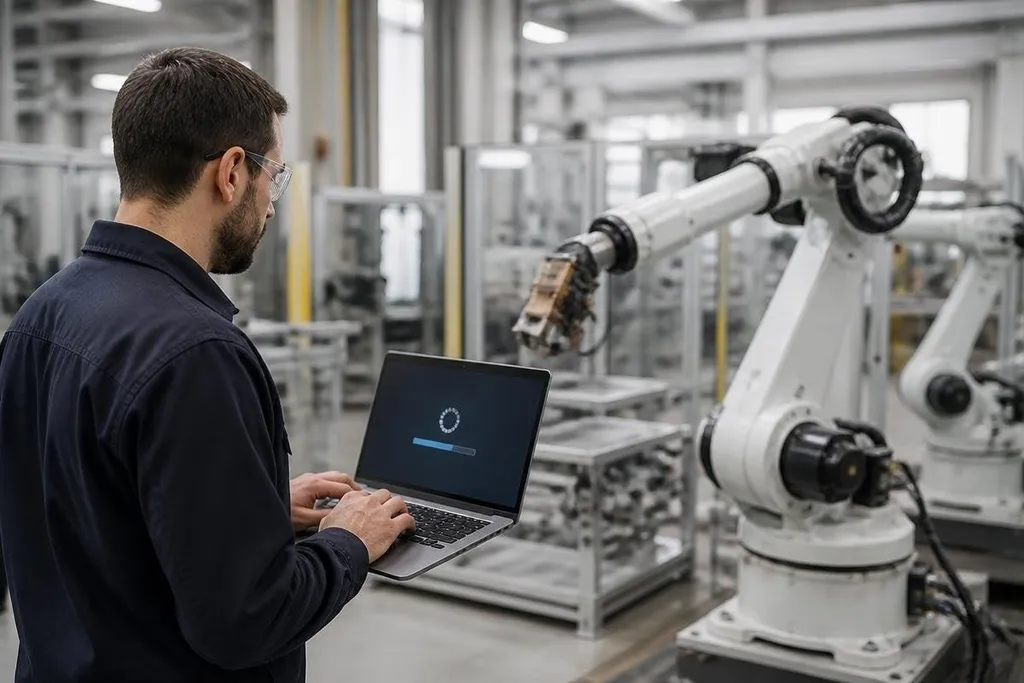
A robot update can change motion control, sensor handling, safety checks, or the way a fleet talks to its server. For the person running robots on a factory floor, the main issue is simple: how does new software reach the machine without stopping work?
Quick read
- Updates can arrive through a network, a USB drive, or a service cable.
- The robot checks the software before it replaces the version already running.
- A safe system can return to the earlier version after a failed update.
The three common paths
Most robots get software through one of three paths. A technician can connect a laptop or service tool, an operator can load a file from removable storage, or a fleet server can send the update over a wired or wireless network.
A network update is often called an over-the-air update, or OTA. The name covers any update sent without a direct service cable. The robot may connect to a local server inside the site, or to a remote service run by the maker.
That route saves a technician a trip to every robot. It also means the network, account access, and update server become part of the robot's safety plan. A broken connection during a file transfer should leave the old software intact, not leave the robot with half a program.
What the robot checks first
The robot normally downloads a software package before it installs anything. That package can include the main program, firmware for a motor controller, configuration files, or a new map for the robot's work area.
A bootloader, which is the small program that starts the robot before its main software, checks the package. It may compare a checksum, check the maker's digital signature, and confirm that the package fits that model. These checks help block a damaged file or software meant for another robot.
The robot then stores the new version in a separate area of memory when its hardware supports that layout.
It can start the new version there while keeping the older version available. If the new software fails to start, the bootloader can select the older version after a restart.
That fallback matters for a fleet manager. A robot that cannot move after an update needs a service visit. A robot that returns to its last working version may need only a later software package and a planned restart.
Updates can reach more than the main computer
Most robots are a set of computers, not one computer. Its arm controller, motor drives, cameras, safety scanner, battery system, and main processor may each run their own firmware.
An update to the main program can change how the robot plans a route. A motor-controller update can change how a joint responds. A camera firmware update can change the data sent to the software that detects parts, even if the robot's main program stays the same.
This is why update notes need more than a version number. A useful record names the parts that changed, the robot models covered, the restart steps, and the old version that can restore operation.
A failed update puts that record to work: dated robot software update reports can show the robot model, old and new versions, and the steps used to restore it. The next section follows that failure step by step.
What happens during a failed update
Failure can happen before installation, during the file transfer, or after the robot starts the new software. The result depends on the update design and on whether the robot has a backup version.
A failed download may leave the robot running normally because the old software never changed. A failed install may trigger a restart into the earlier version. A failed safety check should keep the robot stopped until a technician checks the fault.
The operator still needs a clear record of what happened. Save the old package, write down the robot's version, and note any changes to settings. Those details help a service team tell a software fault from a damaged sensor, loose cable, or network problem.
A practical update check
Use this list before approving an update for a working robot or fleet:
- Name the target: confirm the robot model, serial range, and software package.
- Save the current state: record the installed version, settings, maps, and calibration data.
- Plan the stop: choose a service window and check what work will pause.
- Test one robot: start with a machine that can be removed from service without blocking the line.
- Check the fallback: confirm how the robot returns to the earlier version and who can start that process.
- Watch the first run: test motion, sensors, safety stops, charging, and network contact before normal work resumes.
I'd avoid a fleet-wide update until one robot has completed its normal tasks on the new software.
The next useful step is to ask the maker how its robots store the old version and what a technician can do when the network fails. If that answer is unclear, the update process isn't ready for an unattended production fleet.